
Chat in the widget
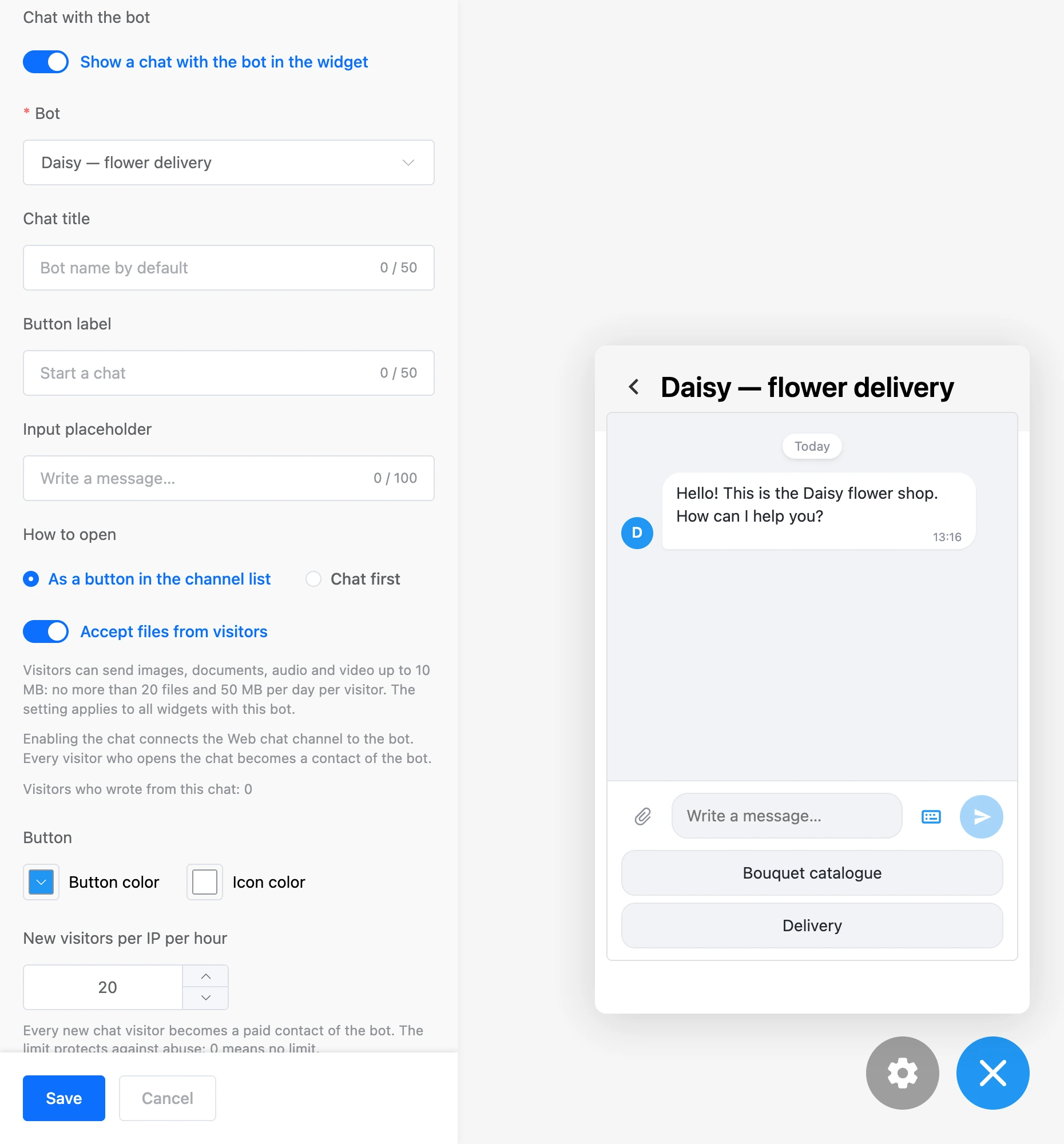
A chat in the widget is a conversation with your bot right on the website. A visitor opens the widget, writes a message, and the bot replies by the scenario: with buttons, images, files. There is no need to go to a messenger.
The chat works through the bot's "Web chat" channel. How the channel itself works, what the operator sees and how to disconnect the channel is on the Web chat page. This page covers the chat settings in the widget.
What you need
- A bot in the same project as the widget. The chat can be linked only to a bot of its own project.
- A Pro subscription for the bot's owner. The widget itself does not need a subscription, the chat does. Without Pro the chat will not turn on, and if the subscription has ended, the widget stays on the website without the chat.
- Contact count. Every visitor who opens the chat becomes a contact of the bot — just like a person who wrote to the bot in a messenger. The Pro price depends on the number of contacts: see The Pro plan.
Turn on the chat
- Open the widget and click the gear button in the builder — the "Widget settings" panel opens.
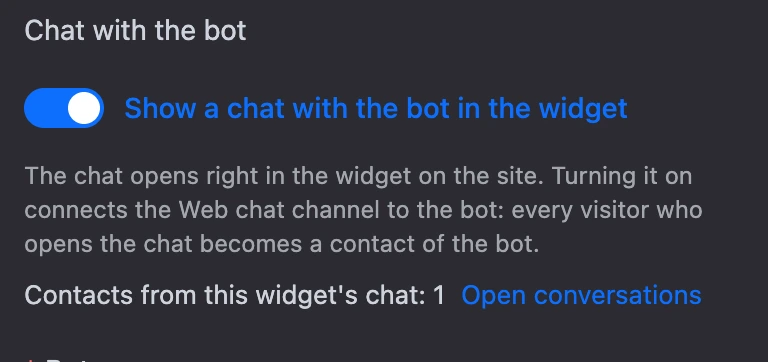
- In the "Chat with the bot" row, turn on "Show a chat with the bot in the widget".
- In the "Bot" field, choose a bot of the project.
- Click "Save".
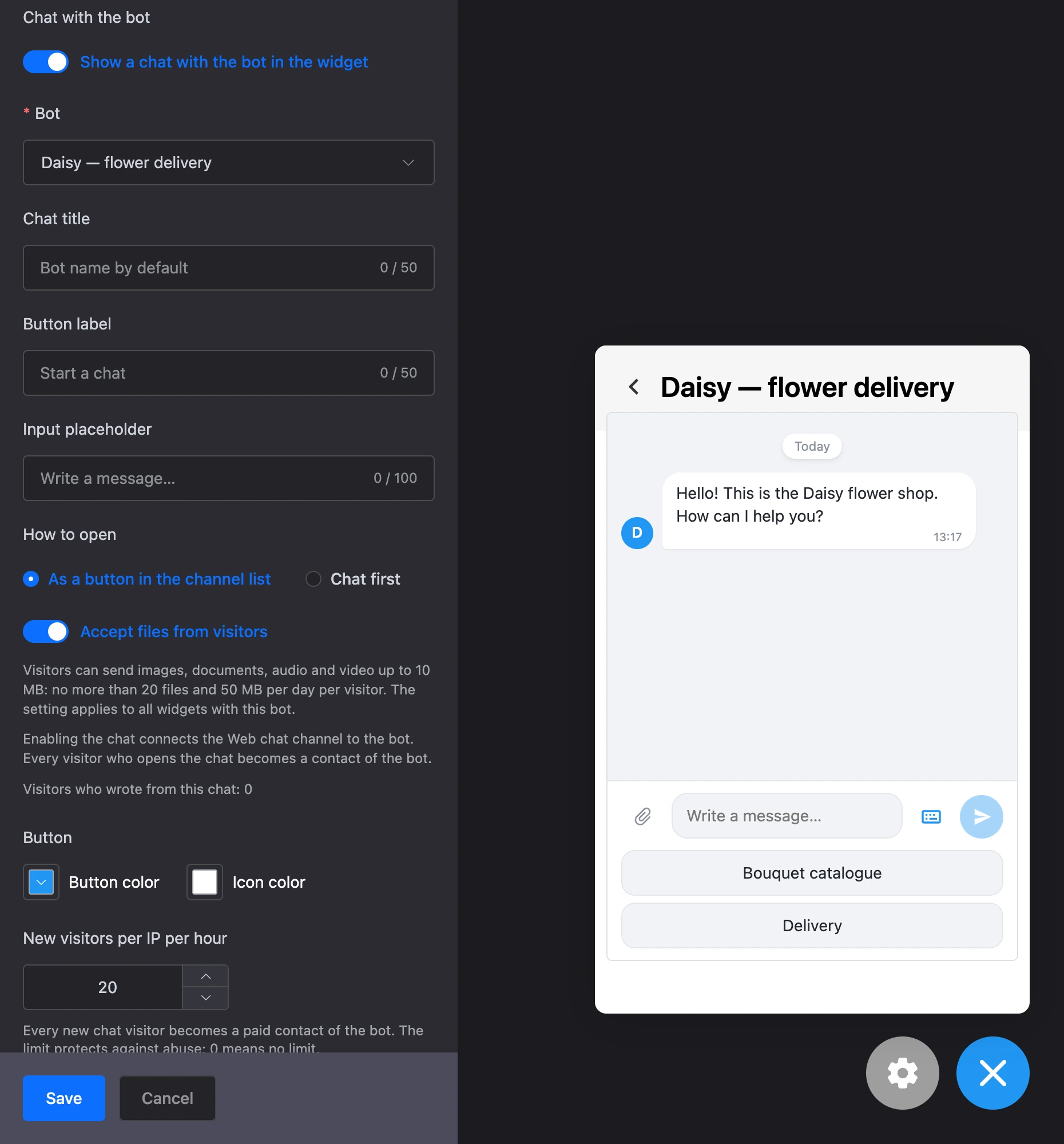
When saving, the platform connects the "Web chat" channel to the bot by itself if it is not connected yet. If the widget is already installed on the website, the chat appears in it without changes on the website.
With the chat turned on, links are not required for the widget: you can leave just the chat.
Chat settings
| Setting | What it sets |
|---|---|
| "Bot" | Which bot of the project the visitor talks to |
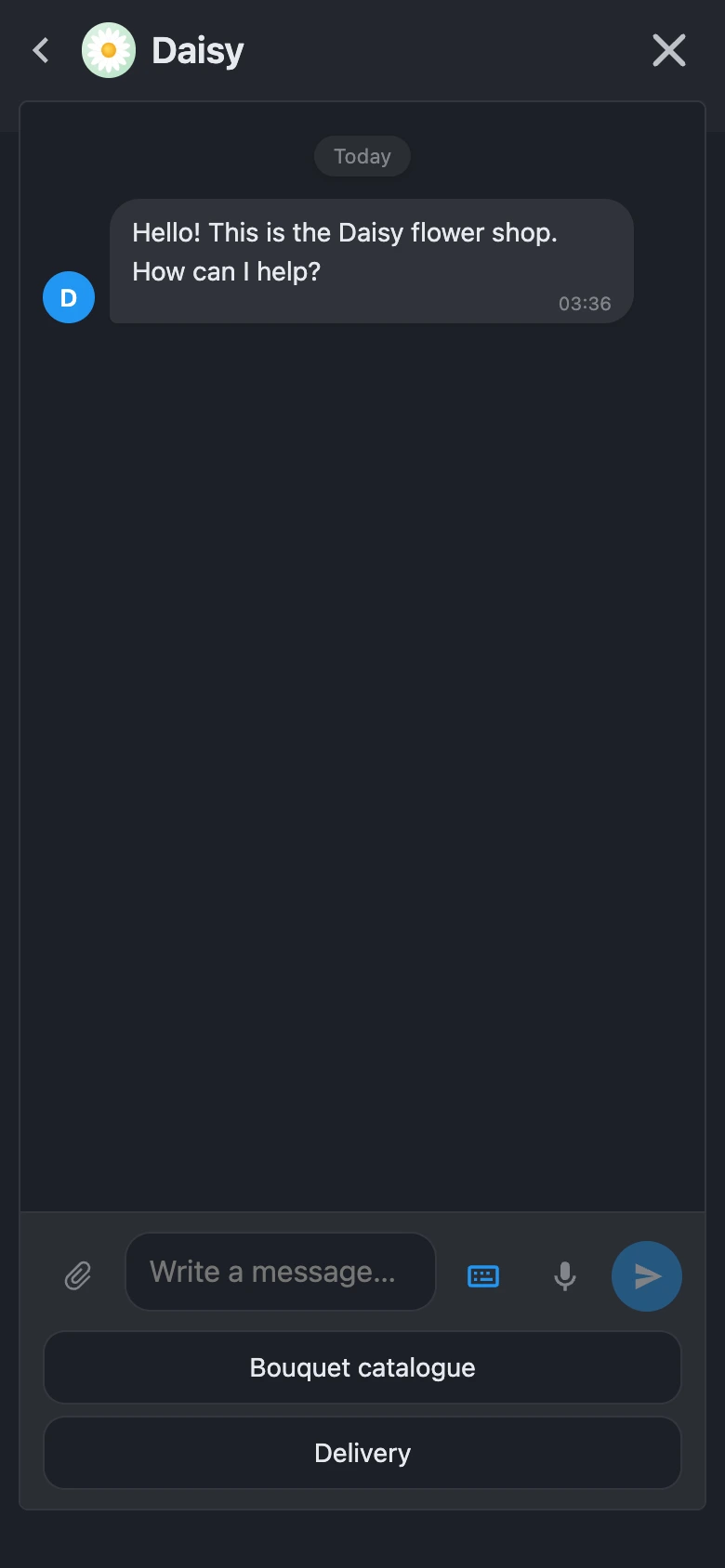
| "Chat title" | The line in the chat header, up to 50 characters. If empty — the bot's name. To the left of the title — the widget icon, if one is uploaded. The bot's avatar is shown next to its messages |
| "Button label" | The chat row in the list of ways to contact you, up to 50 characters. If empty — "Start a chat" |
| "Input placeholder" | Grey text in the empty input field, up to 100 characters. If empty — "Write a message…" |
| "Footer note" | A line in small print at the bottom of the chat window, up to 200 characters — see Footer note |
| "Consent to personal data processing" | A link to your consent document — see Visitor consent |
| "Privacy policy" | A link to your privacy policy — same section |
| "Chat view" | The widget window or an input bar in the center of the site — see The "Input bar" view |
| "When to show" | Only for the input bar: right after the site loads or on the widget button |
| "Where to show the bar" | Only for the input bar: on all pages, only on the listed ones or everywhere except them — see The bar on some pages |
| "How to open" | The mode of the widget window — see below. For the input bar — only if it is not on all pages: then it sets the window on the other pages |
| "Accept files from visitors" | Whether the visitor can send files |
| "Microphone in the chat" | Whether the chat has a microphone button |
| "New visitors per IP per hour" | Protection against inflating contacts. The field is the last one in the panel |
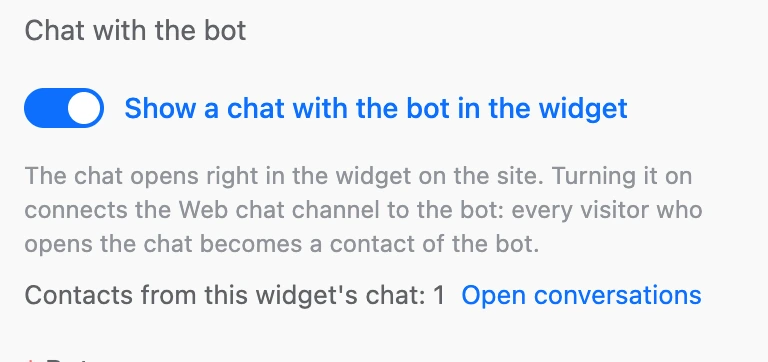
Right under the "Show a chat with the bot in the widget" switch there is an explanation: the chat opens right in the widget, turning it on connects the "Web chat" channel to the bot, and every visitor who opens the chat becomes a contact of the bot. Below it is the line "Contacts from this widget's chat: …" with the number of such contacts and the "Open conversations" link: it leads to the bot's "Messages" section. All visitors who opened the chat in this widget are counted, even if they wrote nothing.
Footer note
A line in small print at the very bottom of the chat window, under the input field. It usually holds something the visitor should know in advance, for example "Answers are written by AI — double-check important information". The note is shown only in the chat: it is not in the list of links or on the QR code page. There is no note by default; to remove it, clear the field.
Visitors see the note, so after you change it the widget goes to the check by the platform, just like after editing the title.
Visitor consent
If you add a link to a consent to personal data processing, to a privacy policy or to both, the visitor sees a screen before the chat: "Before you start the chat, please confirm: I give my consent to the processing of my personal data and accept the Privacy Policy." The document names in the sentence are links to your pages, they open in a new tab. The chat opens after the "Accept and start chat" button. If only one link is set, the sentence mentions only that document.
- The fields are optional: without links the chat opens right away.
- Use a page address that starts with
http://orhttps://, up to 512 characters. - The visitor becomes a contact only after accepting the documents.
- The visitor's browser remembers the consent. If you change the links, the screen appears again — also for those who have already written in the chat. It is also asked again when the visitor writes as a new contact: for example, the previous one was deleted with the /stop command or the visitor cleared the browser data.
- The sentence on the screen is in the website's language, like the widget's other labels.
Visitors see the links, so after you change them the widget goes to the check by the platform.
Note
You prepare the documents yourself: the platform only shows links to them.
Modes: "How to open"
| Mode | How it looks on the website |
|---|---|
| "As a button in the channel list" | The widget opens as a list: the chat is the first row, your links are below it. The chat opens on a tap on the row |
| "Chat first" | The widget opens straight into the conversation. The "Back" arrow in the chat header leads to the list of links, if there are any |
The first mode fits when the chat is one of the ways to contact you, on a par with messengers. The second — when the chat is the main one.
The "Input bar" view
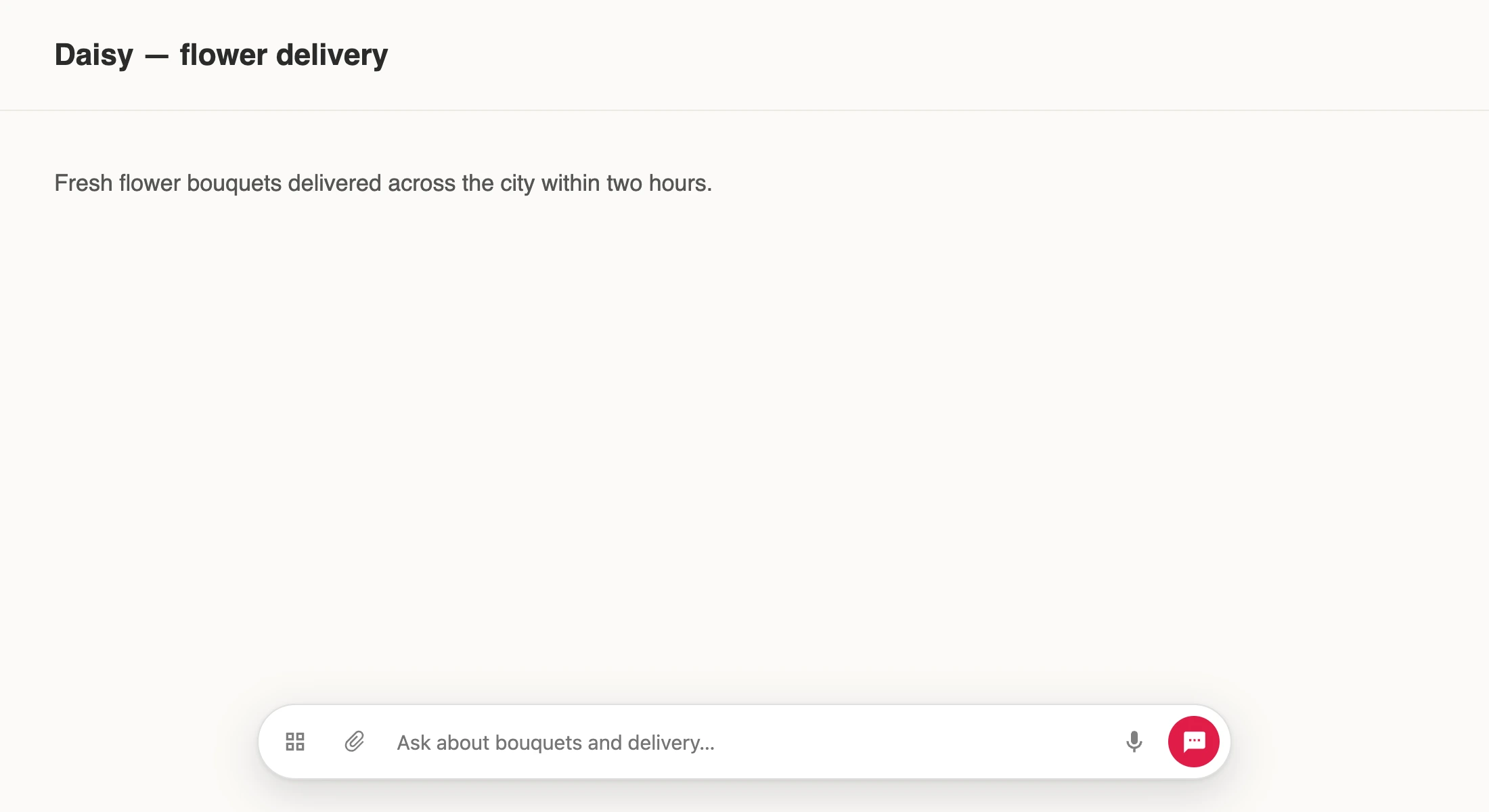
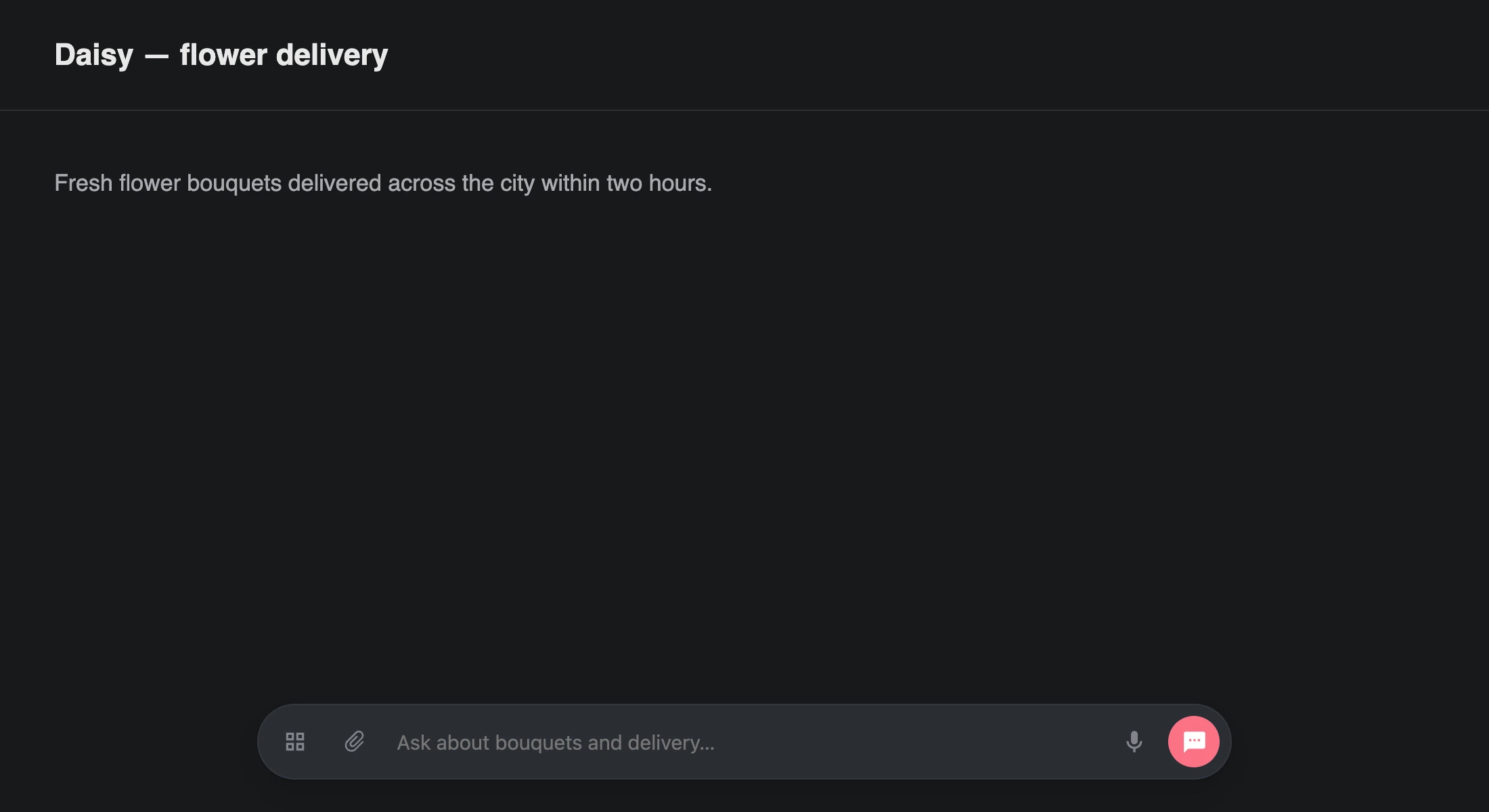
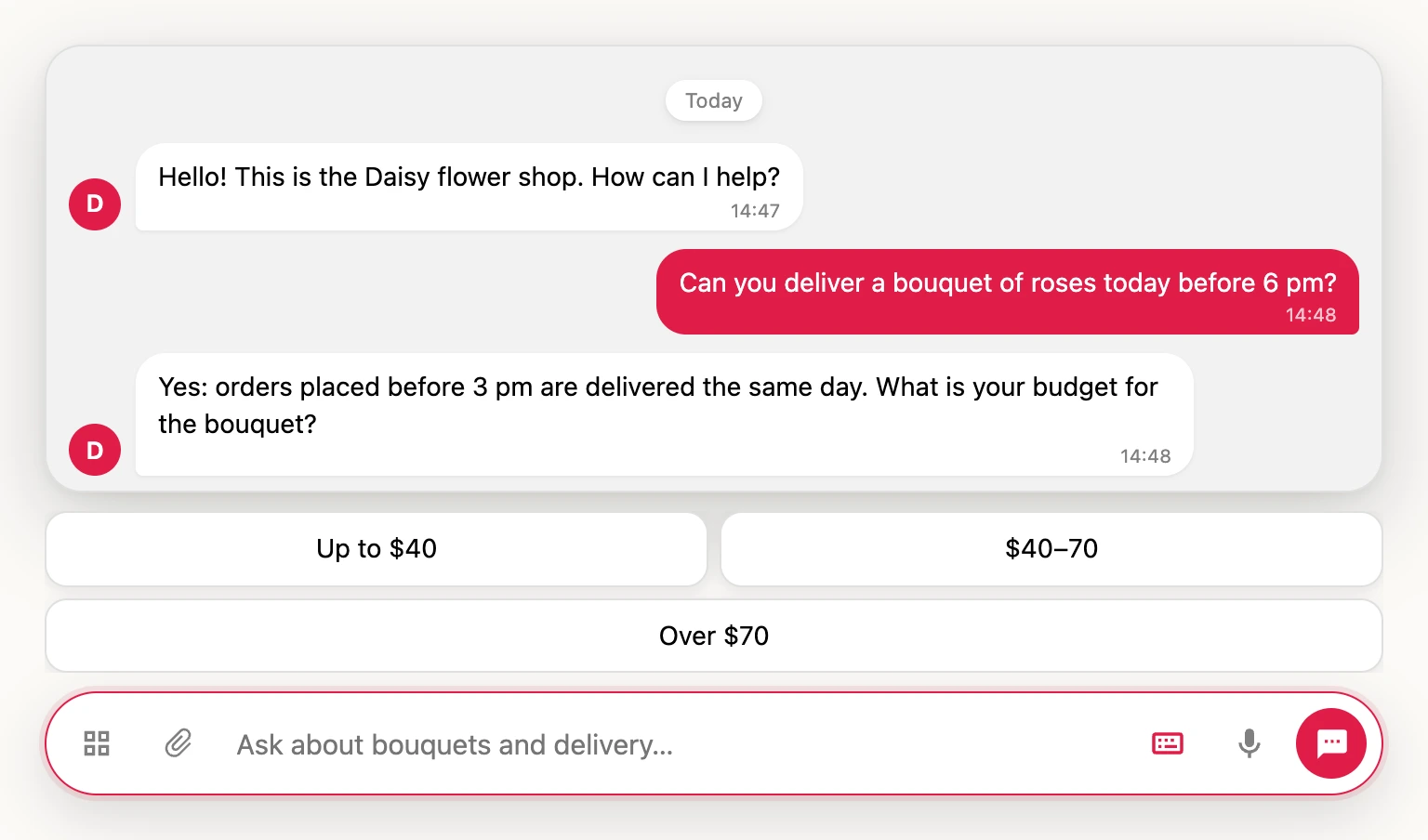
By default the chat opens in the widget window. The "Input bar in the center" view turns it into a field like in AI chats: it sits at the bottom center of the site. On the right, in place of the send button, is the widget icon (without one — a chat icon in the button color); once the field has text, the send arrow appears instead. The conversation appears above the field when the visitor clicks into it and hides when they click elsewhere on the page or press Esc. While the bot is replying, the conversation stays visible; a reply that arrives while the visitor is away also shows up by itself.
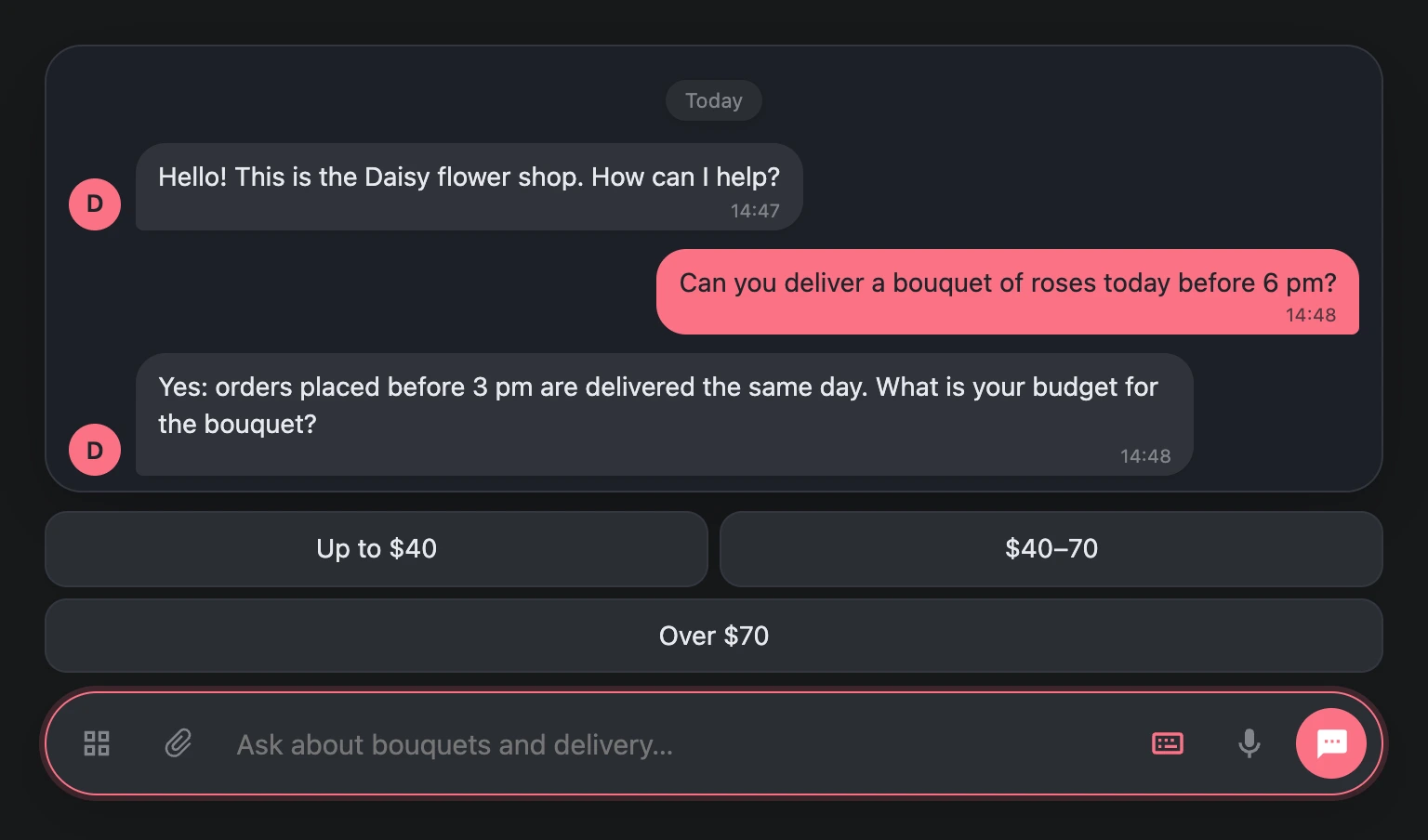
| "When to show" | How it looks on the site |
|---|---|
| "Right after the site loads" | The bar is visible right away, and the site has no widget button. The bar cannot be folded. This option is selected by default |
| "On the widget button" | The site has the usual widget button. On a click it stretches into the bar in the center, and the arrow on the left of the bar folds it back into the button |
- Block buttons that sit under the input field in the window are shown above the bar.
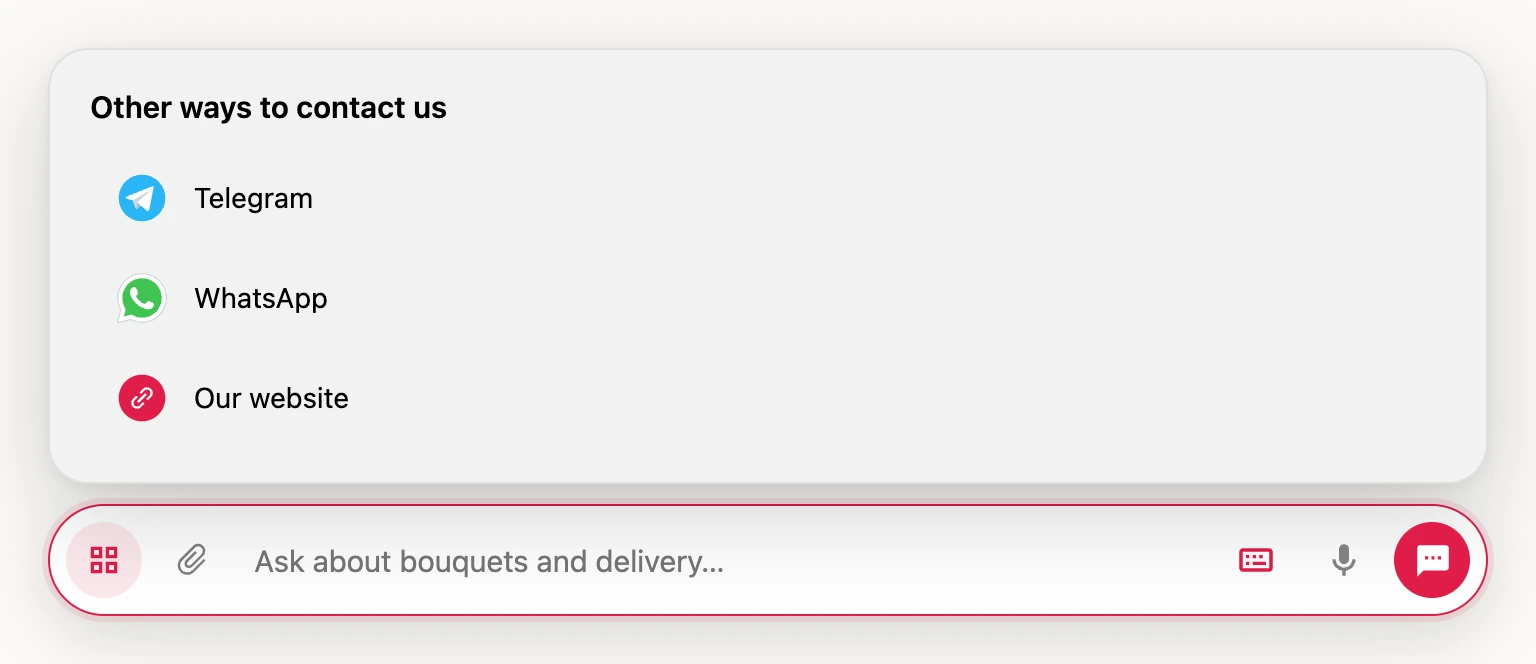
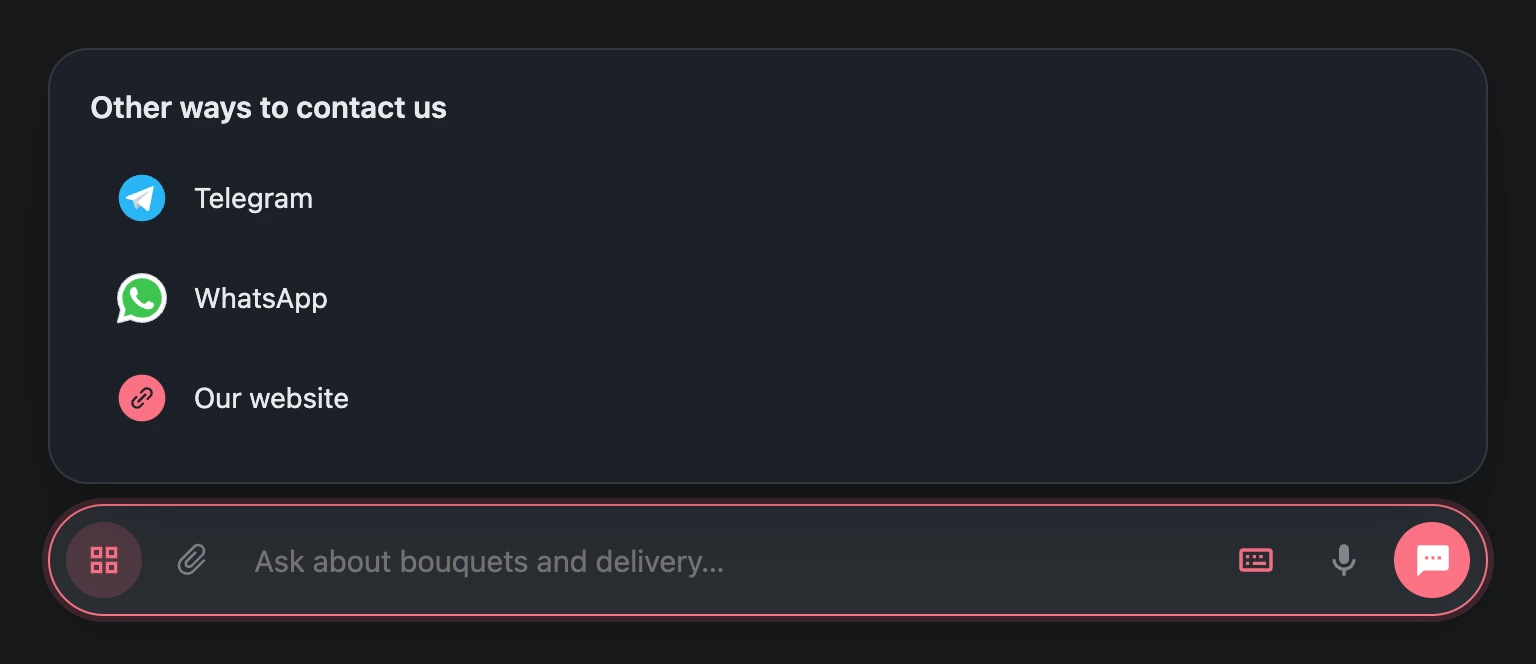
- If the widget has links to messengers, the bar gets an "Other ways to contact us" button with the list. On a computer a messenger opens as a QR code, as in the widget window. The contact options open even before the documents are accepted.
- If documents for consent are set, the visitor sees them above the bar when clicking into it or pressing the paperclip, microphone or a bot button, and writes after the "Accept and start chat" button.
- A mini app from a bot button opens in a window in the middle of the page.
- On a phone the bar at the bottom of the screen opens the usual full-screen chat on a tap. With "On the widget button" the phone keeps the button, and it opens the full-screen chat too.
- In the builder the bar sits in the center of the preview area, and you can test the bot in it.
The bar on some pages
The bar does not have to be on the whole site: for example, promo pages can get the bar while the customer account keeps the usual widget window. In "Where to show the bar" choose "Only on these pages" or "Everywhere except these pages" and list the pages, one per line, up to 50.
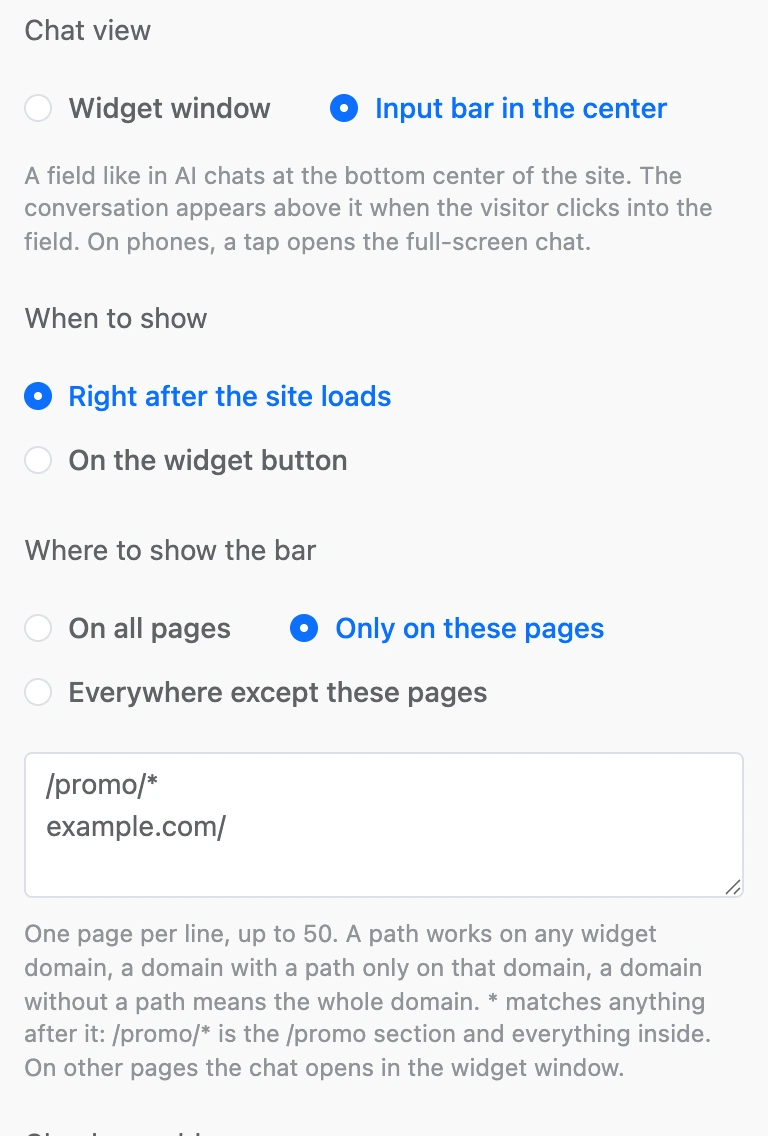
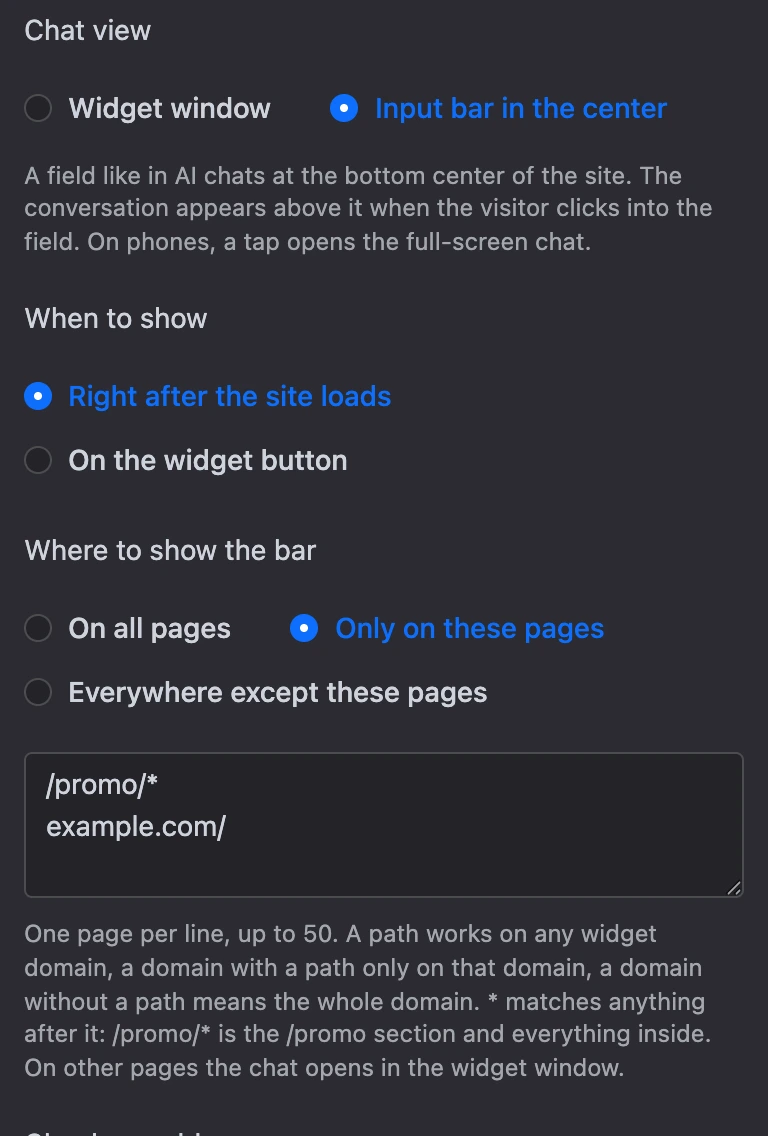
| How to write it | Which pages match |
|---|---|
/promo/* |
The /promo section and everything inside it — on any domain with the widget |
/ |
Only the home page |
example.com/ |
The home page of example.com |
app.example.com |
All pages of app.example.com |
*.example.com/* |
All subdomains of example.com |
*matches anything after it. The beginning of the address (https://), parameters after?, the anchor after#andwww.in the domain are ignored.- Domains and paths can be typed as they are or pasted from the address bar:
сайт.рф/каталог/*and the encoded%D0%BA…are the same. The port is ignored. - A page can't contain spaces, quotes or the
<>signs, and at most five*. In a Cyrillic domain*goes only as a separate part:*.сайт.рф, notмагазин*.рф. If a page is written otherwise, an error appears under the field on saving. - On other pages the chat opens in the widget window. How exactly is set by "How to open the window on other pages"; the chat button label in the list can be changed there too.
- In customer accounts where pages change without a reload, the widget notices the navigation and switches between the bar and the window by itself. The conversation is kept.
- The "Check an address" field shows what the chat will be on a page with that address, and the builder preview switches to that view.
Accepting files
The "Accept files from visitors" switch is on by default. A paperclip appears in the chat's input field, and the visitor can send:
- images — JPG, PNG, GIF, WebP;
- documents — PDF, Word, Excel, text files and CSV;
- audio and video.
Limits: a file up to 10 MB; from one visitor — no more than 20 files and 50 MB per day.
Note
The setting is shared by all widgets with this bot: turn it off in one widget — and the paperclip disappears in all of them.
Microphone
The "Microphone in the chat" switch is on by default: a microphone appears next to the send button. The visitor records a voice message — up to 3 minutes, listens to it and sends it. The voice message comes to the "Messages" section.
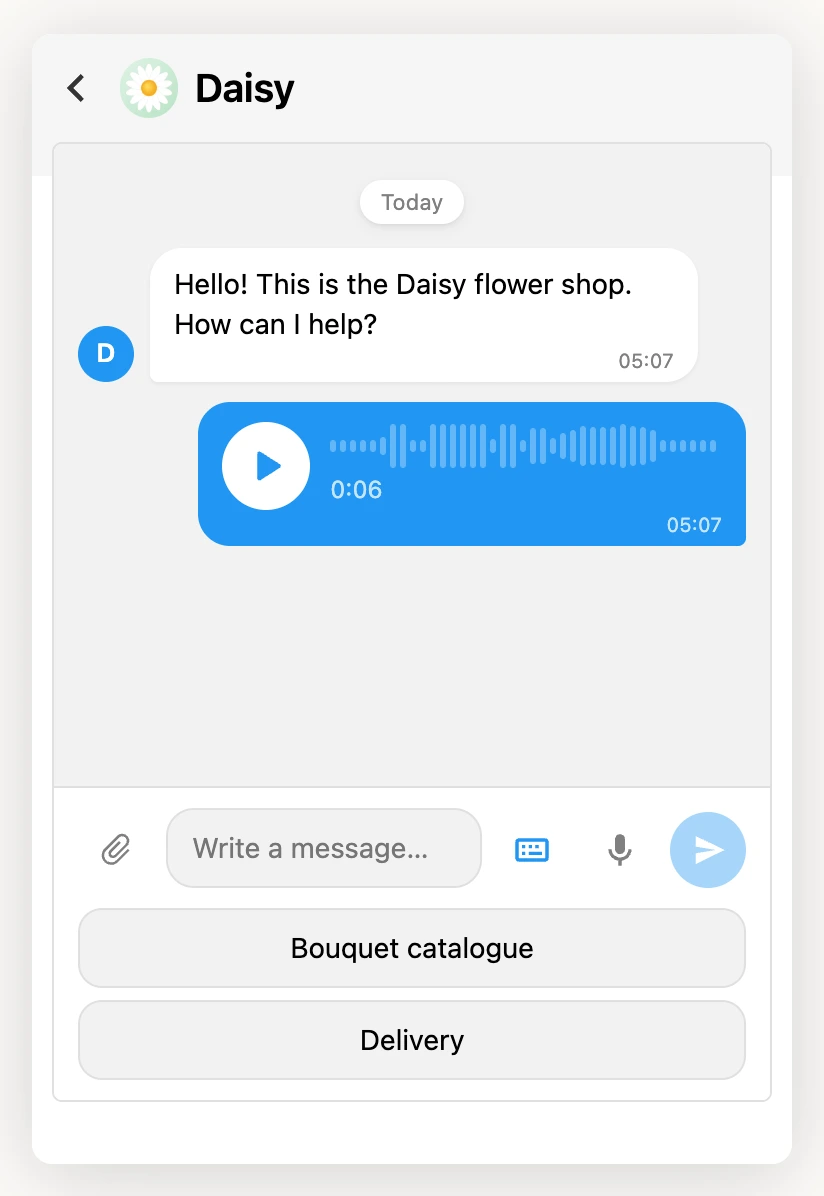
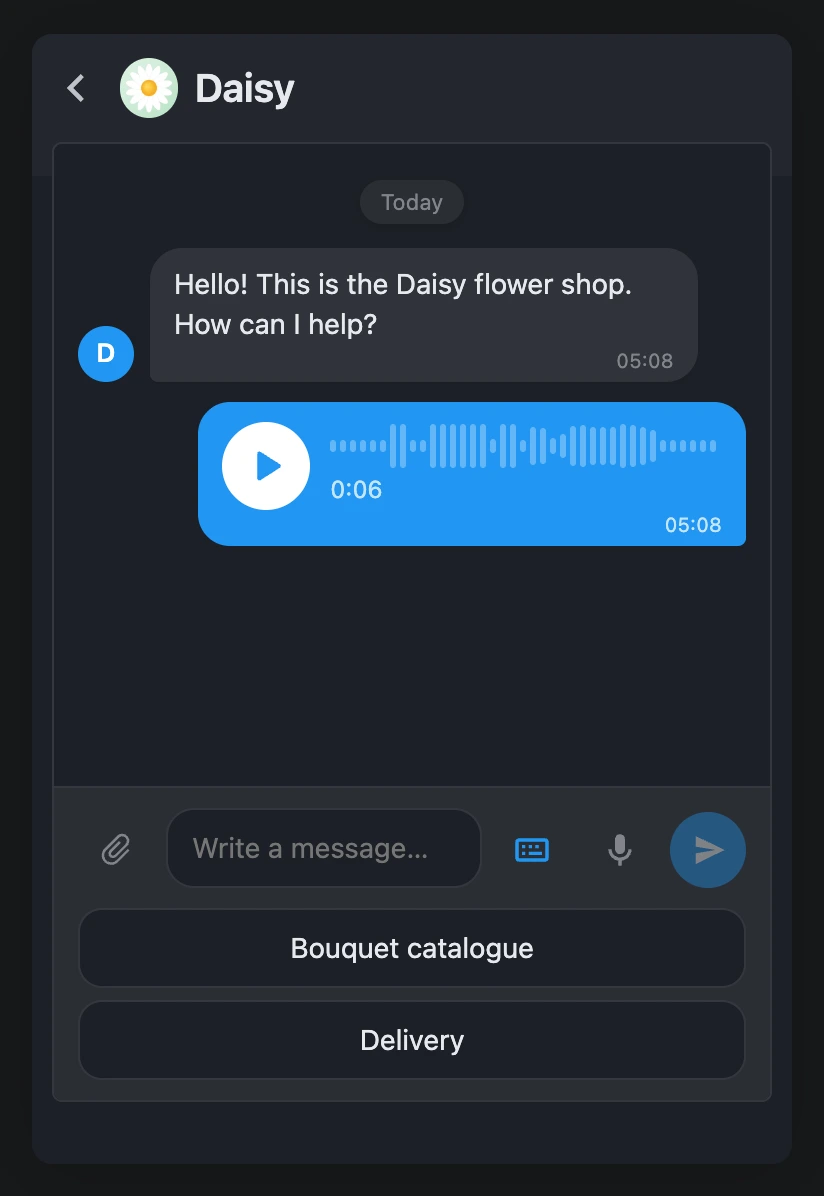
Limits: voice messages are counted together with files — 20 files and 50 MB per day per visitor.
Note
The microphone works only on HTTPS sites. The setting is shared by all widgets with this bot.
New visitors per IP per hour
Every new chat visitor is a paid contact of the bot. To keep someone from creating them by the hundreds by opening the chat again and again, the platform limits the number of new visitors from one IP address per hour. The default is 20; you can set from 0 to 1000; 0 removes the limit.
A visitor beyond the limit sees "The chat is unavailable right now, please try again later". Conversations that have already started are not affected by the limit.
Tip
Increase the value if your customers often go online from one address — for example, employees of one large company or visitors of one coworking space.
Test the chat
In the builder the chat is live: open it in the widget and write a message. This is a bot test — the same as the "Test the bot" window on the scheme: the bot replies by the scenario, and such a conversation adds no contacts or statistics.
How the chat works for a visitor
- A visitor becomes a contact when they open the chat, not when the website page loads. In the "Input bar" view — when they click into the field: the bot starts and sends its greeting, as when the window opens. If documents are set — only after the visitor accepts them. A bar the visitor never touched creates no contact.
- If the settings have documents, the visitor accepts them first — see Visitor consent.
- The conversation is remembered in the visitor's browser. Coming back to the website from the same device, they see their history and continue the conversation.
- Operator messages from the "Messages" section arrive in the same chat.
- While the chat is open, the widget's banner is hidden.
- On a phone, the open chat takes up the whole screen, and the close cross sits in the title row.
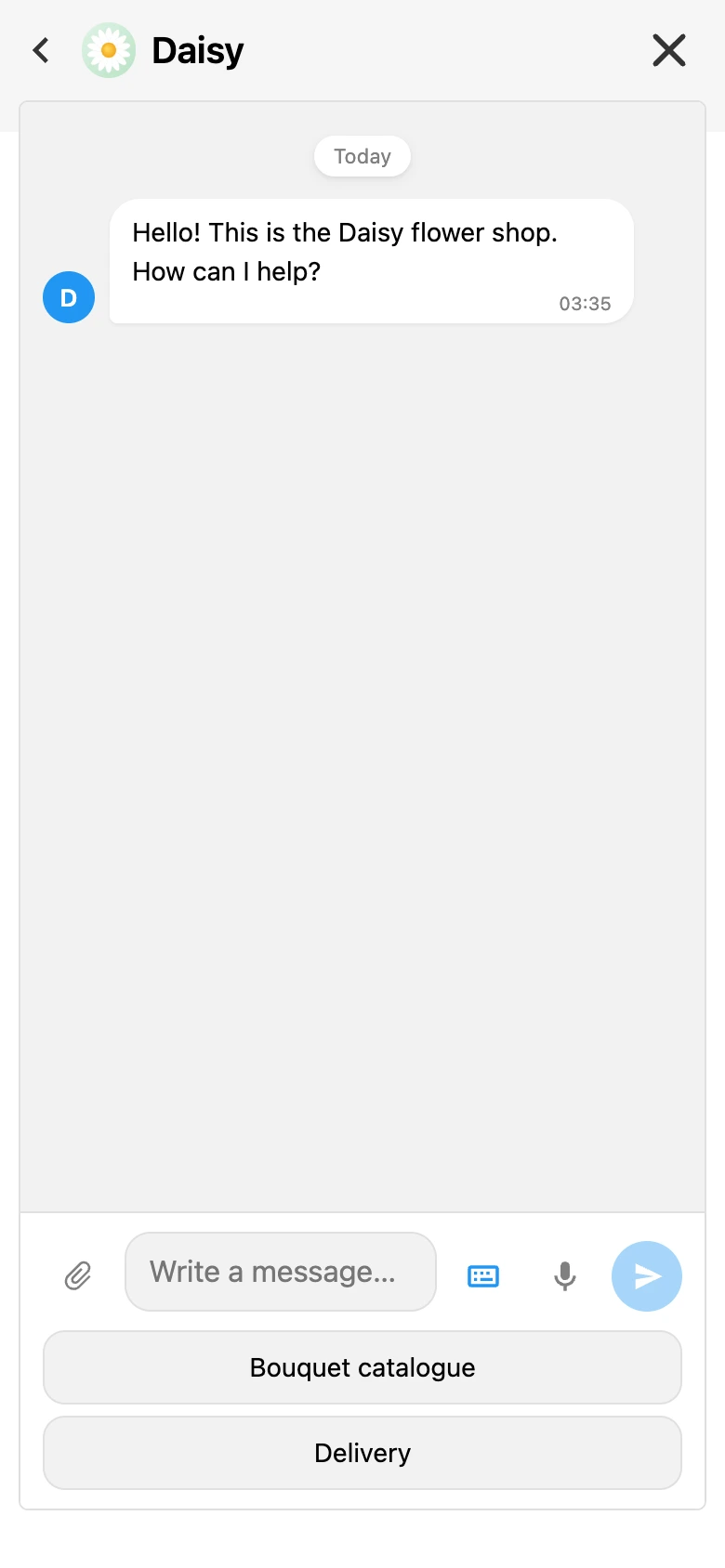
How a visitor learns about a reply
If the visitor has minimized the widget or gone to another tab, and the bot or an operator has replied, the widget calls them back:
| Way | What the visitor sees |
|---|---|
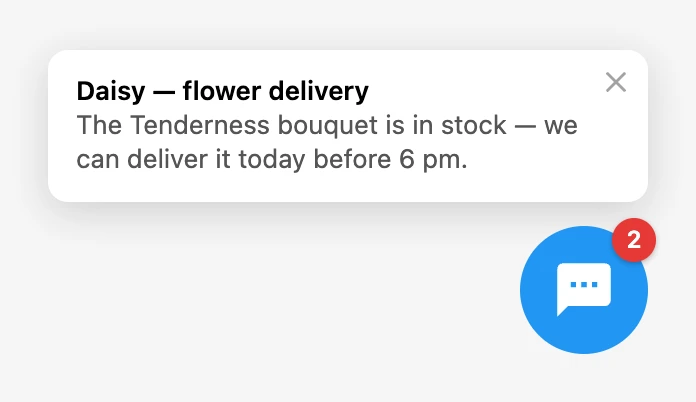
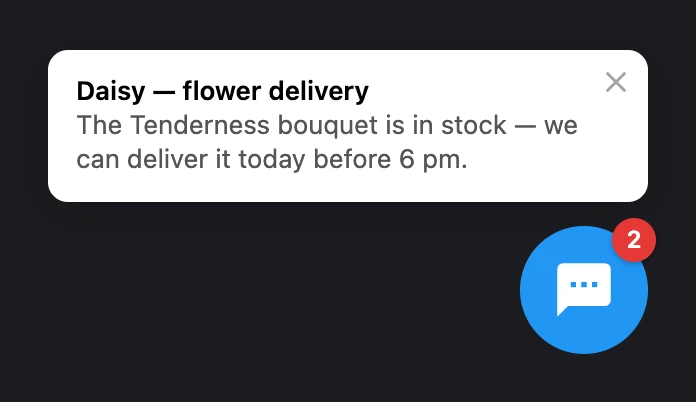
| Badge | A red circle with the number of unread messages on the widget button; more than nine — "9+" |
| Hint | A card above the button: the bot's name (or "Operator") and the beginning of the message. A click opens the chat, the cross closes the hint |
| Tab title | A number in brackets before the page title — for example, "(2) Daisy — flower delivery" |
| Sound | A short beep. It plays only for messages that arrived while the page was open: after a reload, missed messages are shown silently |
The widget checks for new messages about once every 20 seconds, so the badge appears with a slight delay. The widget does not ask for browser notification permission. Notifications work only for those who have already opened the chat on this device.
Chat limits
- A visitor can send no more than 30 messages per minute.
- A message is up to 4096 characters.
- A file is up to 10 MB; 20 files and 50 MB per day from a visitor.
- A voice message is up to 3 minutes.
- When the widget is moved to another project, the chat in it is turned off.
The chat texts — the title, the button label, the placeholder and the document links — are checked by the platform just like the widget's other texts: see Widget checks by the platform.
If something does not work
- "The Web chat channel of this bot is turned off, so the chat is not shown on the site." A warning in the settings panel: the channel was disconnected on the bot's scheme. Click "Connect channel" right in the warning.
- A window offering to get Pro opens when saving. The chat turns on only with a subscription.
- "The bot was not found in the widget project." The chosen bot was deleted or moved to another project. Choose another one.
- The "Bot" list is empty — "The project has no bots yet". Create a bot in this project or move the widget to a project with a bot.
- There is no chat on the website although it is turned on. Check in order: whether the bot owner's Pro is active, whether the bot has the "Web chat" channel connected, whether the widget is saved.
- The visitor sees "The chat is unavailable right now, please try again later." The reasons: the bot owner's subscription has ended or the new visitor limit was triggered.
- The visitor sees "Too many messages, please wait a moment." The limit of 30 messages per minute was triggered.
- The visitor cannot send a file. Chat messages explain the reason: "The file is too large: up to 10 MB.", "This file type is not supported. Images, video, audio and documents are fine.", "Too many files, please try again tomorrow." or "Files cannot be sent in this chat." — if accepting files is turned off.
- There is no microphone in the chat. Check that "Microphone in the chat" is on and the site is opened over HTTPS.